
Shot Notes
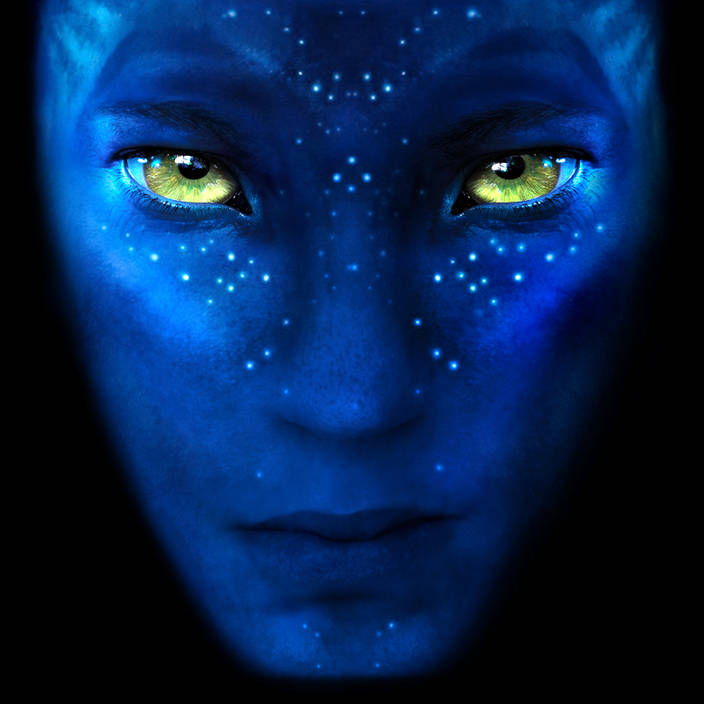
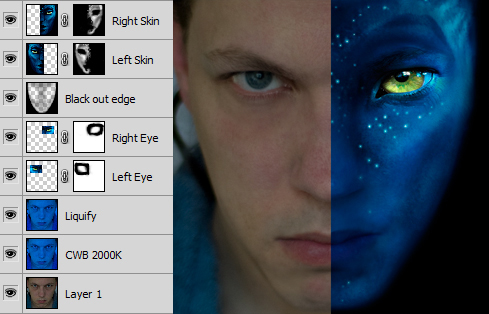
This was an interesting Photoshop challenge. You don’t need to be a Photoshop wizard to do this as long as you can get your head round Photoshop masks. I started by taking a self portrait while trying to imagine the camera had just burnt down my favourite tree. I turned my skin blue by setting the cameras white balance to 2000K. After a quick google image search for “Avatar” I had two more images ready to be composited in Photoshop. One avatar poster which I can use for the skin and one close up of an avatar eye. The images only had one side so I needed to copy and flip them to cover my whole face. By having the eyes on separate layers I could move them to sit directly in line with my own pupils. The position of your main features is how your friends brains identify you. I used Photoshops liquify to change the shape of my nose and mouth. I applied a mask to each layer to blend them together. Finally I darkened one side of the face so to make the lighting appear more realistic.
I guess you are quite the fan of that beautiful movie
You are really good at that. I would love it if you could make me one. I really suck at the photoshop stuff.
I hope you like it LD
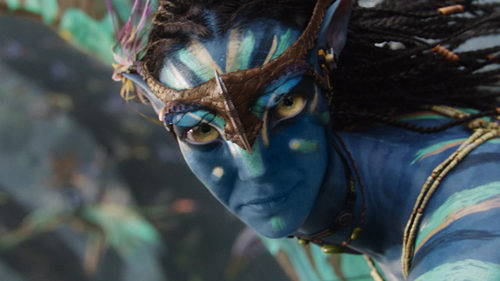
You are very good at this. I’m trying to figure it out, but can’t seem to quite get the hang of it. I have photoshop elements 6.0. Don’t know if you are familiar with this software… but I cannot put two and two together. I guess i dont have the patience. any advice in dummy terms?
Unfortunately Photoshop Elements does not let you apply masks to layers and that is the essential part of this technique. There is a way to simulate masks in Photoshop Elements but then you would need to change the blend modes in order to stack them. It is a very long winded way of doing it. Alternately you could put your photo on a layer above the avatar image, then reduce the opacity to 50% to line up your nose and mouth. Then raise the opacity back up to 100% and use a soft eraser on your photo to blend in the avatar behind. Third alternative is to use free software like Gimp which does let you use layers and masks but Its not the most user friendly software. The final option is to get the full fat version of Photoshop on a one month free trail.
can i have a request ? i’m a fan of the avatar movie .. can you edit me some of my pics ? if you dont mind ? please let me know if it is okey with you .. by the way here is my email add –> meakho@yahoo.com .. thnx! by the way .. GREAT ART
omg can you do this for me?
oh my name is shannon strain and my email is shannon.strain@yahoo.com…if u could do this for me that would be awsome!!!!!!!!!!!!
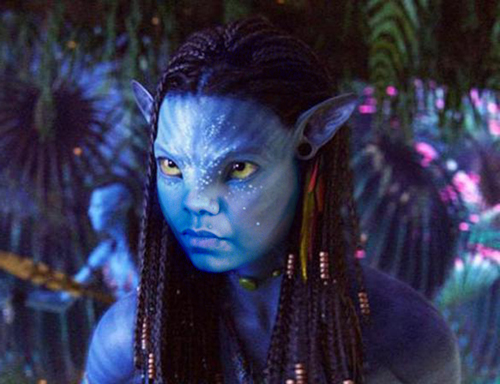
Thanks for your comment on CoolPhotoblogs. I hope you like your Avatar Shannon.
AMAZING!
Thank you soooo much!
BTW
It came out great, as real as you can get!
Hey,
I was wondering if it is possible to make one of these photos with a picture of me smiling?
I downloaded photoshop and tryed a few times but I guess im not as gifted as you are..lol anyway thank you for your time, hope to hear from you soon =) …
Hi buddy,
How much would you charge to make a Navi portrait of one of my photo’s, and how could I get the money to you?
Please let me know, I’m very interested in your service.
Could you get back to me.
Thanks, and kind regards,
Chris
P.S Great job on the Navi self portrait.
cool….i am trying to do this
Your works are amazing. I like it. Greetings from Hungary.
i was wondering if you could make me an avatar im super bad with all photoshop if you can’t its all good just would be awesome email me at jbind261@live.kutztown.edu WOOT AVATAR
can you do this for me?? its amazing. I love avatar.Kisses from Poland. My mail address:jereminek@wp.pl
Hey i was wondering if you could make me a picture of myself into an avatar ive been searching everywhere
Thoses are some great pictures! They are the best I have seen from other sites. You have a talent of making thoses avatars.